A contractor is on site, and his subcontractor says, “We changed the run,” and walks off. The architect’s plans aren’t updated. Six months later, a contractor rips a wall open because the mechanical chase wasn’t where the drawings said it was.
Results: The contractor will waste days, experience change orders, and lose the client’s trust.
Do you know there is a reliable solution to avoid all these issues? As-built drawings that you can get from CAD Drafters with the highest possible accuracy and precision. Let’s get what they are and how they streamline construction!
What are As-Built Drawings?
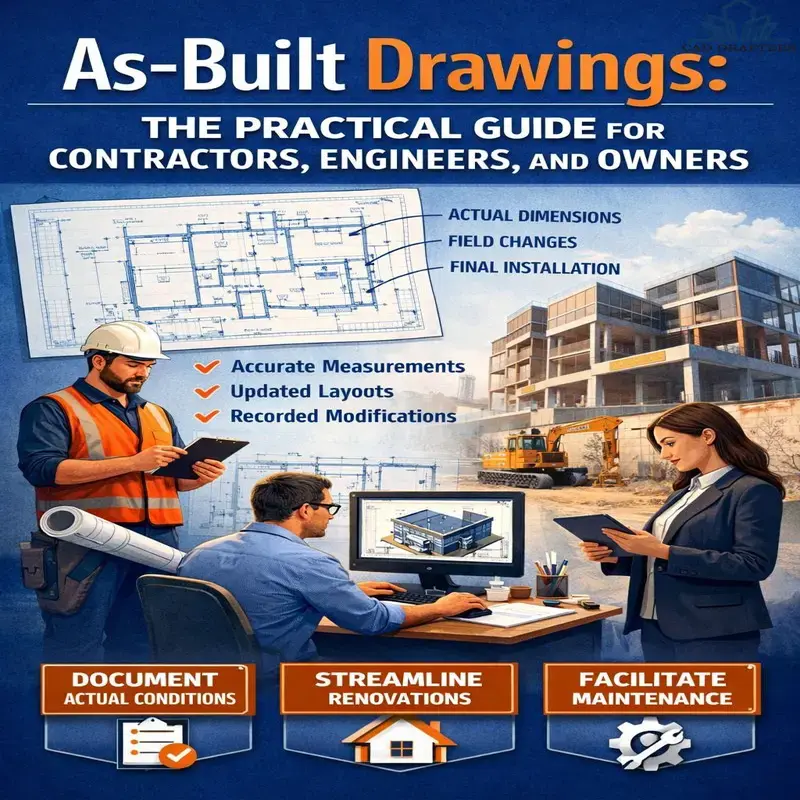
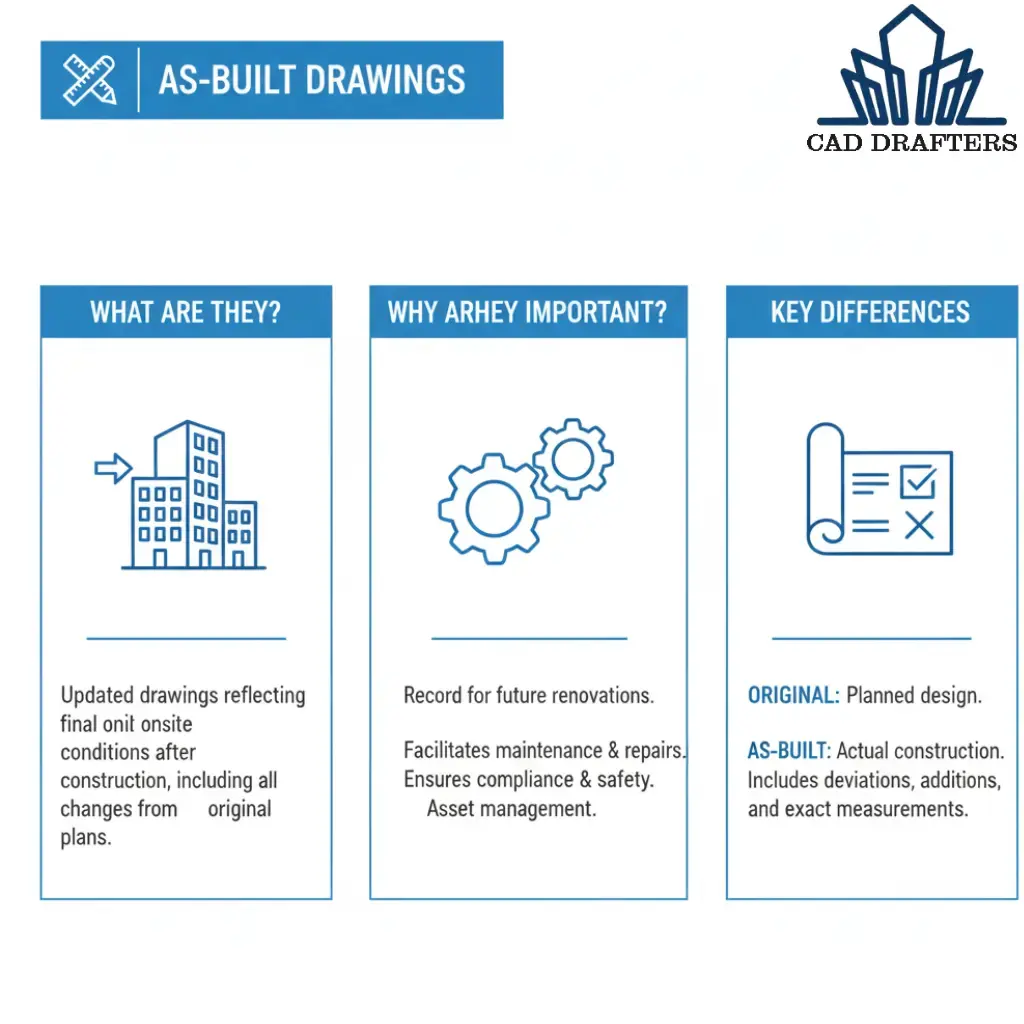
As-builts are the documents and models that show what was actually constructed, covering all changes, field modifications, and deviations from the original design. In other words, they’re the difference between guessing and knowing details. How construction documents record every approved detail—covering all changes, field modifications, and deviations from the original design.
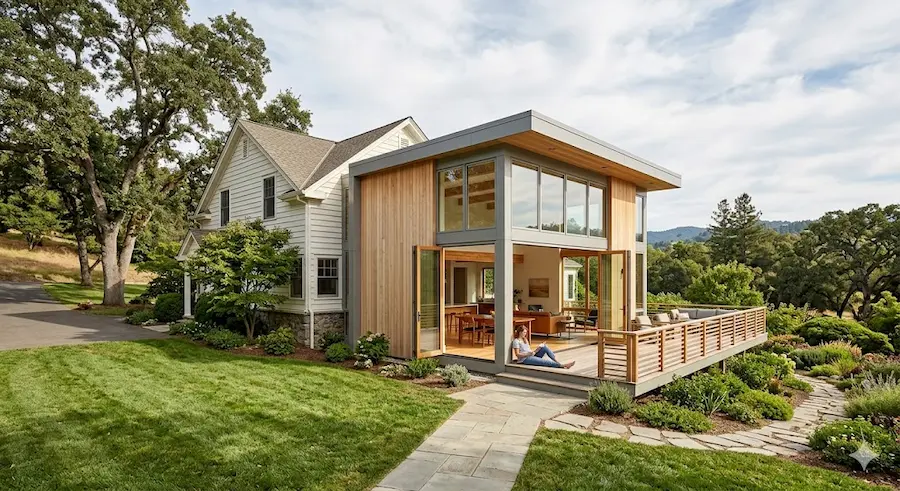
Future owners, facility managers, remodel teams, and even emergency responders rely on as-built drawings to plan, maintain, and adapt the asset. If the as-builts are wrong, someone will pay for it later.
As-Built Drawings vs Design Drawings
Design drawings answer” What are we planning to build,” and as-built drawings answer “What did we end up building.”
As-Built Drawings vs Record Drawings
Architects or engineers often produce record drawings based on contractor markups. As-builts are the raw documentation of what happened in the field.
Why As-Built Drawings Matter in Construction
Large projects now treat as-builts as part of the asset lifecycle, and not just paperwork. Using them, you can…
- Avoid rework on renovations and repairs.
- Create reliable maintenance data for facilities teams.
- Provide legal evidence of what was built.
- Speed up permitting or occupancy reviews when records are solid.
- Form the baseline for digital twins and long-term asset management.
Who Creates As-Built Drawings?
Contractors
Most field changes originate with contractors and subcontractors. That puts them closest to the truth, and often closest to as-built documentation. But being closest doesn’t mean being equipped.
Architects & Engineers
Design teams often finalize record drawings using contractor markups. Their accuracy depends entirely on the quality of those markups.
Owners
More owners now commission independent as-built documentation, especially on complex or high-value assets. This removes guesswork and creates a verifiable record.
Third-Party Specialists
This is where dedicated as-built teams come in. Using laser scanning, BIM, and QA workflows, they capture reality directly, and not secondhand.
What to Look for In an As-Built Drawing
- Title block with project, date, and revision history.
- Sheet index and drawing numbers.
- Clear redline legend (what changed vs original).
- Control point/survey ties (northing/easting, datum).
- MEP racks with routes and sizes.
- Embedded photos or hyperlinks to point cloud scans.
- Metadata for assets (make/model/serial/O&M link).
If you want to inspect a sample, you can look at a public airport parking-lot as-built or municipal sample plans; they show how detailed civil as-builts look.
What Key Components Are Included In As-Built Drawings?
As-built drawings are layered. Each layer tells a different part of the story.
1. Architectural Components
These show how people move and occupy the space. Floor plans, reflected ceiling plans, door and window locations, and finished dimensions are included in them. If walls moved, they should be dimensioned. If ceiling heights changed, they should be noted. Small architectural shifts have big downstream impacts during renovations. For a deeper understanding of how these spatial elements are documented, see, What Architectural Drafting?, which explains how floor plans, dimensions, and layout changes are accurately recorded.
2. Structural Components
Structural as-builts document what actually supports the building. That includes:
- Column locations
- Beam sizes
- Slab thickness changes
- Reinforcements added in the field
3. Mechanical, Electrical, & Plumbing (MEP)
This is where accuracy matters most. MEP as-builts should show:
- Exact routing, not just schematic paths
- Sizes and elevations
- Equipment locations
- Access clearances
4. Civil & Site Conditions
Below-ground work is easy to forget and hard to fix later. As-builts should capture:
- Utility locations
- Slopes and grades
- Drainage paths
- Tie-ins to municipal systems
5. Control Points, Dimensions, & Metadata
Good as-builts don’t float in space. They’re tied to known reference points, benchmarks, datum, and coordinate systems. And increasingly, they include metadata, information embedded in the drawing or model that explains what something is.
Technical Accuracy & Control Points
The accuracy of as-built drawings depends on the method and use case:
| Method | Typical horizontal accuracy | Typical vertical accuracy | Use case |
| Manual field redline (contractor) | ±50–150 mm | ±50–150 mm | Basic renovations where precision isn’t critical |
| Photogrammetry/drone | ±25–100 mm | ±30–100 mm | Site topography, roof surveys |
| Terrestrial laser scanning (LiDAR) | ±5–25 mm | ±5–25 mm | High-accuracy BIM, industrial facilities |
| Total station survey | ±2–10 mm | ±2–10 mm | Control, boundary, structural |
Those ranges are practical industry norms; choose target accuracy based on downstream needs, like MEP clash detection and prefabrication need tighter tolerances. If you’re doing scan-to-BIM, plan for ±5–15 mm on critical elements.
Important: Always record the coordinate reference system (NAD83/State Plane, WGS84) and the project datum in the deliverable README, as a mismatched datum fails data reuse.
How are As-Built Drawings Created?
Professionals use three common workflows:
1. Traditional redline workflow
- Contractor marks changes on paper/blueprints during construction.
- At project end, someone compiles redlines into final drawings (slow, error-prone).
2. Digital redline + BIM workflow
- Field staff use tablets to update floor plans in real time (PDF markup, Bluebeam, PlanGrid).
- Design team merges changes into BIM.
3. Scan-to-BIM (recommended for accuracy)
- Reality capture (laser or photogrammetry) creates a point cloud.
- Modelers create a Revit/IFC model from the point cloud.
- Deliver both model and raw point cloud; include QA report and comparison overlays.
Note: Scan-to-BIM is the go-to for complex or high-risk projects because it leaves a verifiable record (the point cloud).
Modern Technologies That Enhance As-Built Drawings
● Laser Scanning (LiDAR / Terrestrial)
This technology captures millions of points fast, creates highly accurate point clouds you can model from. It is great for industrial, complex MEP, heritage buildings, and tight spaces. Professionals use it when focused on millimeter-level confidence.
● Building Information Modeling (BIM)
BIM gives structure to as-builts, including object attributes, family types, and relationships. It turns drawings into living data, providing schedule details, material lists, and asset attributes. Professionals export it to IFC for cross-platform exchange.
● Connected Construction Platforms
Cloud platforms, like Procore and Autodesk Docs, centralize files, version control, and RFIs, which are useful to ensure the latest as-built is visible to teams. One must ensure continuous updates during construction to reduce end-game rush.
● Mobile Field Documentation
Tablets and apps let field teams record change instantly, attach photos, and geo-reference the change. Relying on this approach, you can keep the process live rather than backlogged.
● Drones / Photogrammetry
It is ideal and fast for exteriors and roof captures. This technology provides less precise data than terrestrial LiDAR for tight MEP, but is excellent for site surveys and large exterior geometry.
Best Practices For As-Built QA / QC
Treat accuracy as a process. Here’s a practical checklist:
Pre-Capture
- Define target accuracy and deliverables in the contract.
- Set survey control and benchmark points before work starts.
- Decide on file formats, naming conventions, and metadata needs.
During Capture
- Use check scans/control targets to validate point cloud accuracy.
- Tag photos and scans with GPS and timestamp.
- Keep daily field logs and short videos when needed.
Post-Capture
- Run a reality-to-model comparison, including model vs point cloud.
- Produce a QA report to register errors, control residuals, and sample spot checks.
- Keep raw data (point cloud) and the processed model as both are deliverables.
Documentation
- Include a README for datum, units, coordinate system, point cloud registration method, and surveyor stamp (if applicable).
- Provide a revision log showing who changed what and when.
What a QA Report Should Show
- Project name, date, provider, contact.
- Point cloud registration RMS error.
- Control residuals (list of control points with measured vs expected).
- Spot checks: list 10 object measurements comparing model vs cloud (difference).
- Conclusion: pass/fail vs contract tolerance.
As a project owner, you can use this checklist to avoid conflicts later.
Advanced Strategies For As-Built Drawings
- Integrate asset metadata, including warranty dates, serial numbers, and vendor links.
- Use version control and a cloud folder for as-builts, so teams always work on the most recent file.
- Connect to CMMS (computerized maintenance systems) by exporting asset tables.
- Consider a lightweight digital twin for critical facilities. When budgets allow, digital twins plus periodic scans make facilities management proactive.
These are where owners get real ROI and experience less emergency downtime, quicker renovations, and better budget control.
What To Look For In an As-Built Handover Checklist?
- Project README (datum, units, coordinate system).
- Registered point cloud files with registration report.
- Revit model
- 2D set with revision history.
- Asset register with O&M links.
- Geotagged photo pack.
- QA report with sample spot checks and tolerances achieved.
- Signed acceptance form from owner acknowledging receipt.
Ideal Formats & Purposes Of Each Deliverable
| Deliverable | Standard format(s) | Purpose |
| 2D Drawings | DWG, PDF | Quick reference for contractors, permits |
| BIM Model | Revit (.rvt), IFC | Design integration, clash detection, and facilities management |
| Point Cloud | E57, LAS, PTS | Source reality capture for future modeling |
| Asset Register | Excel/CSV + link | O&M, warranties, serials |
| Photos | JPG (geotagged) | Visual verification |
| Overlay files | Civil 3D, GIS shapefiles | Site/infrastructure integration |
| Metadata | JSON/XML | Machine-readable asset data |
Note: Ensure that the reports have clear file naming, versioning, and a README describing the coordinate system and units.
How Much Does It Cost For As-Built Drawings In The US?
The exact number can only be uncovered in the quote from a company. Here is a rough range.
| Project type | Estimated cost range | Estimated timeline |
| Small tenant fitout | $800–$3,000 | 3–10 days |
| Single building scan-to-BIM | $5,000–$25,000 | 2–6 weeks |
| Complex industrial plant | $25,000–$200,000+ | 6–20+ weeks |
How To Deliver As-Built Drawings To The Project Owner?
When you hand over:
- Package everything in a single zip or cloud folder.
- Include a README and a 15-minute video walkthrough showing where files live and how to open them.
- Ask the owner to sign the acceptance and note any follow-up items.
- Offer a short training or support window for the first 30 days.
As-Built Common Problems You Must Avoid
● Rushed Closeouts
As-builts are often left to the end, especially when budgets are tight and when teams are exhausted. That’s when accuracy goes out of the field.
● Missing Field Changes
Not every change feels important in the right moment. Unrecorded shifts stack up, and later, nobody remembers why something doesn’t match the drawing.
● No Verification
A drawing can look clean and still be wrong. The major reasons could be the lack of verification, scans, measurements, cross-checks, etc.
Avoid costly surprises—use precise as-built drawings for smarter renovations and maintenance.
FAQs
What’s the difference between as-built drawings and record drawings?
As-builts show actual constructed conditions; record drawings are architect-issued documents that may consolidate contractor markups into a formal set. Contracts determine definitions.
Who should pay for as-built drawings?
Contract dependent. Often, the contractor provides contractor’s as-built markups; the owner may pay for independent scan-to-BIM services if they want verified models.
Do as-builts need to be signed/stamped by a professional surveyor?
Suppose the as-built includes a legal boundary or certified elevation work, yes. For interior MEP models, it’s usually not required, but check local codes.
Should I request raw point clouds or just the Revit model?
Ask for both. Raw point clouds let future teams re-model or verify the delivered model.
What coordinate system should be used?
Use a standard (State Plane or NAD83) and document it in the README. Mismatched systems are a common cause of unusable data.
How often should as-builts be updated?
For active facilities: after major renovations, annually for critical systems, or after any change that affects safety/operation.
Why are as-built models becoming more popular?
Because BIM models provide accuracy, data, and long-term value beyond 2D drawings.
Are as-built plans required for every project?
Not always by code, but they’re strongly recommended for future work and asset management.
What files should I store for the long term?
Keep raw point clouds, BIM models, 2D PDFs, asset register CSVs, and the README. You can store them in a versioned cloud folder.
Can as-builts be used for prefabrication?
Yes, but only if accuracy tolerances are tight (small millimeter range) and QA checks confirm fit.
What’s a good naming convention?
PROJECT_SITE SHEET_YYYYMMDD_PROVIDER_V#
Include date and version; ensure no spaces and use underscores.
Why README is essential in as-built drawings?
Because incomplete metadata or missing control makes a perfect point cloud useless, so, don’t skip the README.
Conclusion
As-built drawings aren’t exciting, but they’re powerful. They protect projects from future confusion. They turn experience into a record. And they quietly support every decision that comes after construction ends.